
Accessing near real-time data
Introduction to accessing near real-time data
Customers with smart meters, subject to certain restrictions, are now able to access near real time electricity usage from their smart meter.
This information can be used to assist customers with practical information about their usage patterns and costs.
Access requires the use of a third-party device attached to either the P1 port or to the front of the smart meter where the LED pulse is located.
The third-party device typically includes an in-home display or app which displays shows your electricity usage from the smart meter.
Background FAQs
Can I access near real-time information from my smart meter?
Yes, customers with smart meters, are now able to access near real-time electricity usage from their smart meter.
However, it is important to note the following restrictions:
- ESB Networks does not provide the third-party devices and does not provide any product or technical support.
- If your smart meter is located inside a multi-meter cabinet, such as those in an apartment block, you are not permitted to install either a P1 device or an LED Pulse Reader due to safety concerns.
- In the event of a meter exchange, ESB Networks will remove any connected device and leave it in the meter box. Therefore, any device must be detachable. ESB Networks will not be liable for any damage to the device if we need to remove it.
If you have any questions about the device you are using, please contact your provider
What is near real-time information?
Near real-time electricity data is information about your electricity use that updates every few seconds. By connecting a compatible device to your smart meter, you can see near real-time information on how much electricity you are using, helping you manage and reduce your energy use.
Access requires the use of a third-party device that is attached to either the P1 Port, or to the front of the smart meter where the LED pulse is located and paired with a third-party display or an app by the customer . Please note, ESB Networks does not provide these devices or provide any product support.
As this data does not pass through ESB Networks' meter data management system it is not subject to any validation. ESB Networks performs a number of checks on the meter data collected from smart meters to ensure the readings are accurate and that the time-clock on the meter is accurate.
What is the difference between near real-time information and the ESB Networks online account?
The information shown in the ESB Networks online account undergoes thorough validation processes, managed by ESB Networks, to ensure its accuracy and allocation to the correct time period.
The information provided directly via the P1 Port or the LED Pulse Reader is not subject to those validation processes, which may lead to some slight differences in the information.
Does GDPR apply to near real-time information?
Meaningful information is derived only when a P1 port compatible device or LED pulse reader device is attached to the meter and paired with a third-party display or an app by the customer. ESB Networks is not the Controller or Processor (as defined by GDPR) of data obtained through the P1 Port or the LED pulse reader and is not responsible for the management or protection of such data.
P1 port FAQs
What is the P1 port and what does it do?
The P1 port is a small plug available on newer smart meters that lets compatible devices read your electricity use in near real-time.
P1 port functionality is only available on compatible smart meter types. Please note that ESB Networks does not provide or support third party P1 port devices and device compatibility may vary by manufacturer. Third party P1 port devices are supplied independently of ESB Networks and compatibility or performance cannot be guaranteed.
The P1 port is, by default, disabled for customers use but is enabled through your ESB Networks Online Account.
By connecting a compatible device to this port, you can see near real-time information on how much electricity you are using, helping you manage and reduce your energy use. Please note, ESB Networks does not provide these devices or provide any product support.
Not all smart meters in Ireland have a P1 port, but if it is available on your meter, you will be able to turn it on or off remotely through your ESB Networks Online Account, so you stay in control of which devices can access your data.
The P1 port is located on the front of your smart meter. If your meter does not have a P1 port, you can still view your near real-time data by connecting an LED pulse device
How do I check if my meter has a P1 port?
The P1 port is a small socket located on the lower left corner of some smart meters, identified on ESB Networks smart meters by a blue or green cover
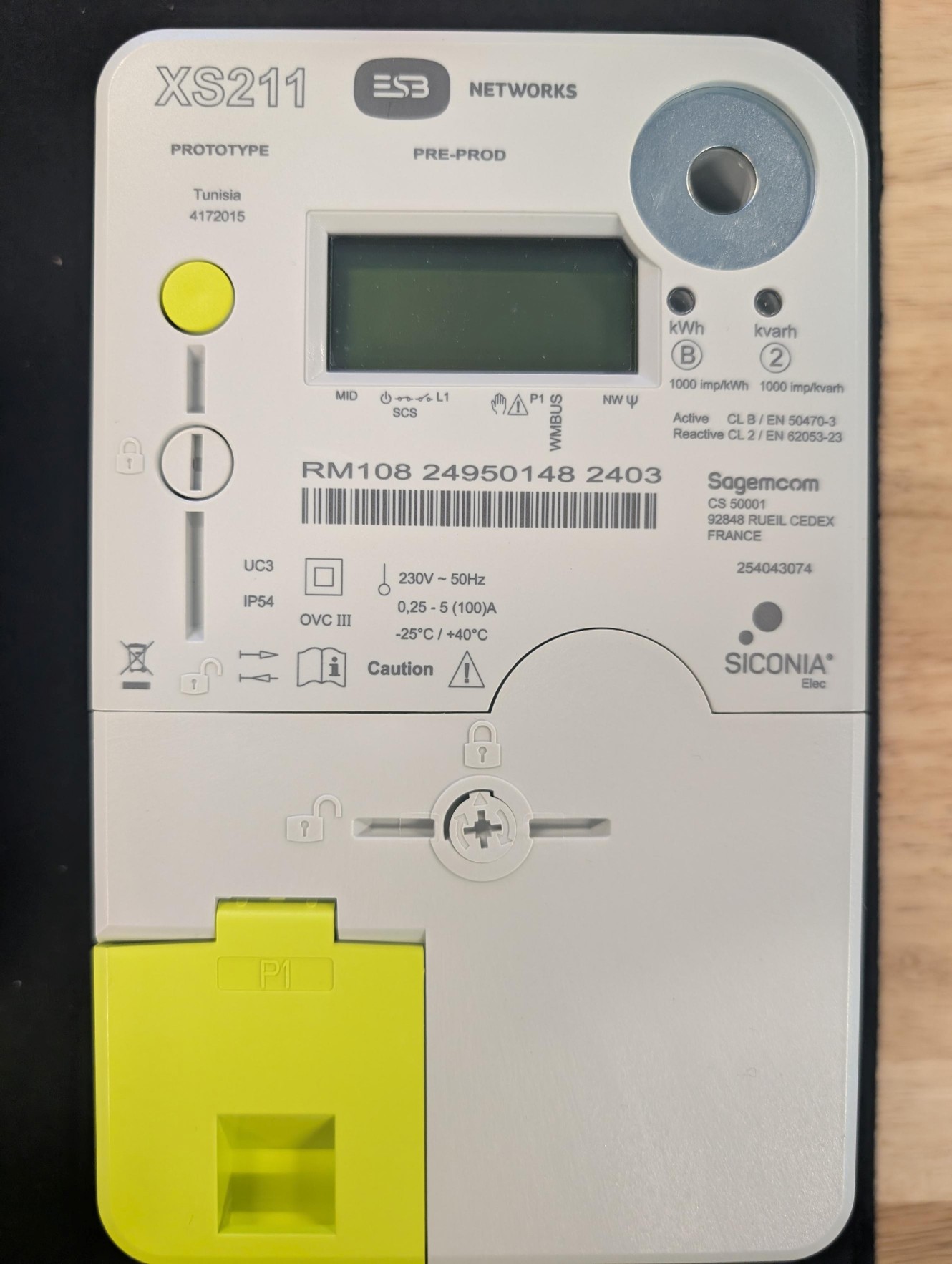
The P1 port is, by default, disabled for customers use but is enabled through your ESB Networks Online Account.
Not all smart meters in Ireland have a P1 port. If your meter does not have one, you can still view your near real-time information by using an LED device. Further details are available below in the LED pulse reader FAQs section.
NOTE: The P1 port cannot be activated by a visit from a technician, it can only be activated via your ESBN Online Account.
How do I enable the P1 port on my smart meter?
The P1 port is disabled by default, but you can enable through your ESB Networks Online Account.
Steps to enable your P1 port:
- Sign in to your ESB Networks Online Account using your account details.
- Once you have logged in, navigate to the option ’Access Additional Meter Data Services’ and then select ‘Manage my P1 Port’.
- Enable the P1 port Then select the tab to enable your P1 port and confirm your request.
- System Check
- If your smart meter supports a P1 port, the system will automatically process your request and enable it.
- You will be informed if your smart meter does not have a P1 port or if you don't have a smart meter installed.
- If you do not already have a smart meter, you can request one here by using the Smart Meter Sign Up Form
- Confirmation after your P1 port has been enabled, you'll be able to see the update in your online account.
If you wish to disable your P1 Port, follow the above steps and select the tab to disable your P1 Port and confirm your request.
After your P1 port has been disabled, you'll be able to see the update in your online account.
Please note:
- No technician visit is needed. Enablement typically takes up to an hour once requested.
- If your meter doesn’t support a P1 port, you can still view your near real-time information by using an LED pulse reader device. Further details are available below in the LED pulse reader FAQs .
How do I check the status of my P1 port?
Your ESBN Online Account displays the status of your P1 port.
| Status | Meaning |
| Enabled | Data flow is active. You may plug in your external device. |
Disabled | No data is being transmitted. |
| Pending | Your request has been submitted and is awaiting processing. |
Failed | The request could not be completed. |
What should I do if my request fails?
If a request shows as Failed, this may be due to recent online account or meter updates that are still being processed. Examples include a recent change of occupancy, supplier change, tariff change, other online account or metering updates, or a temporary service interruption.
If your request has failed, please wait a minimum of 2.5 hours before trying again. This allows sufficient time for the request to complete the full processing cycle. If the issue persists after retrying, please refer to the additional support guidance available within the FAQs.
How do I check P1 port safety and compatibility?
P1 port safety considerations and warning:
- Due to safety concerns, do not attempt to install a device where there are multiple meters. If discovered, the device will be removed without notice.
- Before attempting to install a compatible device to the P1 port, look for obvious safety issues such as: water in the meter box, exposed wires, broken parts on the meter or other equipment, removed seals, or signs of heating (i.e. charring). If you notice any of these issues. STOP. Do not attempt to attach any device to the meter and contact ESB Networks immediately at 1800 372 999.
- Customers should take extreme care when accessing the meter box and should use no tools such as a tool with a sharp edge or point, or any drill should be used within the meter box or close to the meter.
- Please follow the manufacturer's safety instructions on how to install a third-party device on your smart meter carefully. The device is not a permanent connection to the meter.
Compatibility Check:
- The device plugged into the P1 port won't operate if the P1 port is not successfully enabled through your ESB Networks online account.
And finally, please note:
- P1 port functionality is only available on compatible smart meter types. Please note that ESB Networks does not provide or support third party P1 port devices and device compatibility may vary by manufacturer. Third party P1 port devices are supplied independently of ESB Networks and compatibility or performance cannot be guaranteed.
- ESB Networks will not be liable for any damages or issues arising from the installation or use of the P1 port or any device. Follow all safety precautions and manufacturer safety instructions carefully.
- Any damage caused by incorrect installation of the device in the P1 port is the responsibility of the customer.
- If ESB Networks requires to exchange your smart meter, the P1 port will not automatically remain active.
- If your previous meter had the P1 Port enabled, ESB Networks will attempt to reactivate it on the new meter.
- If the reactivation request is not successfully resent within 48 hours, you may need to manually re‑enable the P1 port through your ESB Networks Online Account.
- If there are persistent issues with your P1 port, contact ESB Networks at 1800 372 757 for assistance.
Where can I buy a device to plug into the P1 port?
Compatible devices should be purchased from a reputable manufacturer, and you should ensure they meet all relevant European safety standards and have the CE label.
ESB Networks does not endorse any manufacturer or product. Please follow the manufacturer's safety instructions on how to install third-party devices on your smart meter.
Note: ESB Networks does not provide these devices or provide any product support.
LED pulse reader FAQs
What is an LED pulse reader?
An LED pulse reader measures the pulses emitted by a smart electricity meter to gather near real-time consumption data. Each pulse typically represents a specific amount of energy consumed, usually measured in watt-hours (Wh) or kilowatt-hours (kWh).
As this data does not pass through ESB Networks' meter data management system it is not subject to any validation. ESB Networks performs a number of checks on the meter data collected from smart meters to ensure the readings are accurate and that the time-clock on the meter is accurate.
How do I start? Check safety & compatibility
An LED pulse reader does not require remote enablement. Customers can attach the device to the front of the smart meter where the LED pulse is located.
LED pulse safety considerations and warning.
Due to safety concerns, do not attempt to install an LED pulse reader where there are multiple meters. Please note, the device will be removed without notice if discovered.
Before attempting to install an LED pulse reader look for obvious safety issues such as: water in the meter box, exposed wires, broken parts on the meter or other equipment, removed seals, or signs of heating (charring). If you notice any of these issues. STOP.
Do not attempt to attach any device to the meter and contact ESB Networks immediately at 1800 372 999
Customers should take extreme care when accessing the meter box and should use no tools such as a tool with a sharp edge or point, or any drill should be used within the meter box or close to the meter.
Please follow the manufacturer's safety instructions on how to install third-party device on your smart meter carefully. The device is not a permanent connection to the meter and must be detachable (for example, use Velcro, and not superglue).
Compatibility check:
The LED pulse output technology won't be effective when there is any export to the grid, i.e. where microgen is connected. This is because they may provide misleading information when there is an outflow of energy from your premises.
And finally, please note:
ESB Networks will not be liable for any damages or issues arising from the installation or use of the LED pulse device. Follow all safety precautions and manufacturer safety instructions carefully.
Any damage caused by incorrect installation of the LED pulse reader is the responsibility of the customer.
If we must exchange your smart meter, ESB Networks are not responsible for the LED pulse reader. It is the customer's responsibility for the reattachment of the LED pulse reader to the new smart meter.
Where can I buy an LED pulse device?
LED pulse readers should be purchased from a reputable manufacturer and you should ensure they meet all relevant European safety standards and have the CE label.
ESB Networks does not endorse any manufacturer or product. Please follow the manufacturer's safety instructions on how to install third-party devices on your smart meter.
Note, ESB Networks does not provide these devices or provide any product support.